Agent Builder
Configure Knowledge Base connection Preview
Complete the following steps:
Complete the following steps:
-
Open the AI Toolkit app.
-
From the Agentic AI tab select Configuration.
-
From the top right select +Connection and choose Knowledge Base.
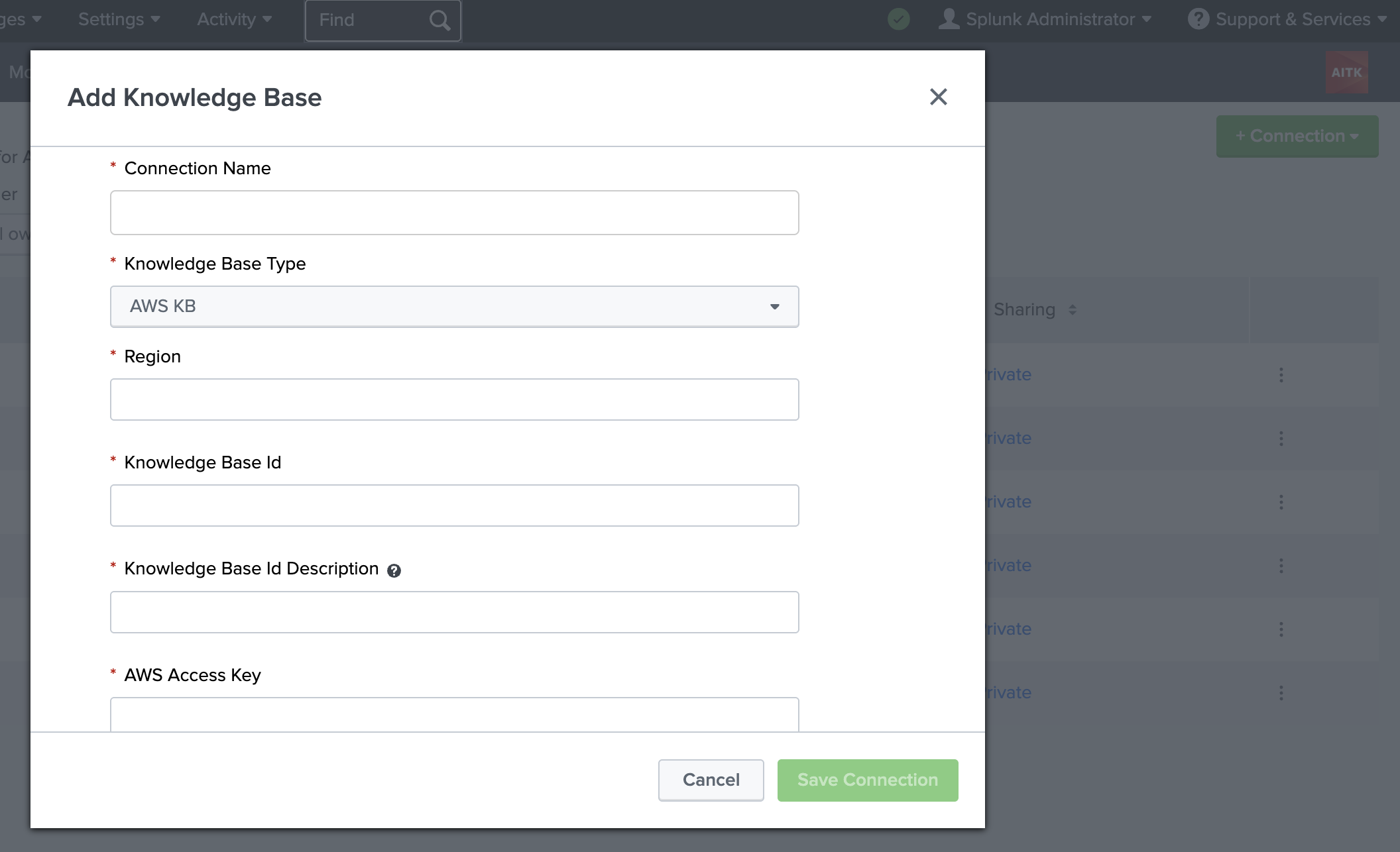
- Complete the fields on the Add Knowledge Base page. Fields marked with an asterisk as required:
| Field | Description |
|---|---|
| Connection Name | Type in or paste in an alphanumeric Connection Name. |
| Knowledge Base Type | Select a Knowledge Base Type from the drop-down menu. |
| Region | Enter the region where your knowledge base is located. For example, Asia, Canada, Europe. |
| Knowledge Base ID | Enter the unique KB ID. |
| Knowledge Base ID description | Add a description to help identify this knowledge base. |
| AWS Access Key | Enter the unique AWS information. |
| AWS Secret Key | Enter the unique AWS information. |
| Role ARN | Enter the unique Amazon Resource Name (ARN) information. |
-
(Optional) Test the connection and edit field information as needed.
-
Select SaveConnection when ready.
Source: https://help.splunk.com/en/splunk-cloud-platform/apply-machine-learning/use-ai-toolkit/5.7.3/ai-toolkit-commands-macros-and-visualizations/connections-tab-in-the-ai-toolkit (upstream Splunk AITK 5.7.3 docs)