Install the AI Toolkit
The AI Toolkit lets you create, validate, manage, and operationalize machine learning models through a guided user interface. Follow these directions to install the AI Toolkit.
$SPLUNK_HOME/bin/splunk install app splunk-ai-toolkit-5.7.3.tgz -auth admin:$PWD
Upgrade the AI Toolkit
The AI Toolkit regularly releases new features and enhancements. To learn about new features and enhancements by release version see What's new in the AI Toolkit.
Splunk AI Toolkit version dependencies
The AI Toolkit releases updates on a regular schedule. Keep your instance of the AI Toolkit and affiliated add-ons up-to-date to access the latest features.
The AI Toolkit lets you create, validate, manage, and operationalize machine learning models through a guided user interface. Follow these directions to install the AI Toolkit.
Requirements Permalink to this section
You must meet the following requirements to successfully install and the run the AI Toolkit:
- Splunk Enterprise 9.3.x or higher, or Splunk Cloud Platform.
- Installation of the correct version of the Python for Scientific Computing (PSC) add-on from Splunkbase.
Choose the appropriate operating system version of PSC for your environment:
- Python for Scientific Computing (for Mac Intel)
- Python for Scientific Computing (for Mac Apple Silicon)
- Python for Scientific Computing (for Linux 64-bit)
- Python for Scientific Computing (for Windows 64-bit)
Note: On some Windows installations, installing PSC through the Splunk Manage Apps user interface results in an error. This error is usually benign and you can ignore it. In some cases, you might need to manually unpack the package in the apps directory to get past the error.
Version dependencies Permalink to this section
For version information that includes AI Toolkit, the PSC add-on, Python, and the Splunk platform, see the AI Toolkit version dependencies.
Note: Python 3.9 reached its official end of life on October 31, 2025. Support for Python 3.9 ended with PSC versions 4.2.5 and 3.2.5. PSC versions built on Python 3.9 are not compatible with AI Toolkit version 5.7.0 and higher.
| AI Toolkit version | PSC add-on version | Splunk platform version |
|---|---|---|
| 5.7.3 | 4.3.1 | Splunk Enterprise 9.3.x, 9.4.x, 10.x, 10.1.x, or 10.2.x or Splunk Cloud Platform |
| 5.7.2 | 4.3.1 | Splunk Enterprise 9.3.x, 9.4.x, 10.x, 10.1.x, or 10.2.x or Splunk Cloud Platform |
| 5.7.1 | 3.3.1 or 4.3.1 | Splunk Enterprise 9.3.x, 9.4.x, 10.x, 10.1.x, or 10.2.x or Splunk Cloud Platform |
| 5.7.0 | 3.3.0 or 4.3.0 | Splunk Enterprise 9.3.x, 9.4.x, 10.x, 10.1.x, or 10.2.x or Splunk Cloud Platform |
| 5.6.4 | 3.2.3, 3.2.4, 3.2.5, 4.2.3, 4.2.4, or 4.2.5 | Splunk Enterprise 8.2.x, 9.0.x, 9.1.x, 9.2.x, 9.3.x, 9.4.x, or 10.x or Splunk Cloud Platform |
| 5.6.3 | 3.2.3, 3.2.4, 3.2.5, 4.2.3, or 4.2.4 | Splunk Enterprise 8.2.x, 9.0.x, 9.1.x, 9.2.x, 9.3.x, 9.4.x, or 10.x or Splunk Cloud Platform |
| 5.6.1 | 3.2.3, 3.2.4, 3.2.5, 4.2.3, or 4.2.4 | Splunk Enterprise 8.2.x, 9.0.x, 9.1.x, 9.2.x, 9.3.x, 9.4.x, or 10.x or Splunk Cloud Platform |
| 5.6.0 | 3.2.3, 3.2.4, or 4.2.3 | Splunk Enterprise 8.2.x, 9.0.x, 9.1.x, 9.2.x, 9.3.x, 9.4.x, or 10.x or Splunk Cloud Platform |
| 5.5.0 | 3.2.2 or 4.2.2 | Splunk Enterprise 8.2.x, 9.0.x, 9.1.x, 9.2.x, or 10.x or Splunk Cloud Platform |
| 5.4.2 | 4.2.1 | Splunk Enterprise 8.2.x, 9.0.x, 9.1.x, or 9.2.x, or Splunk Cloud Platform |
| 3.2.1 | Splunk Enterprise 8.2.x, 9.0.x, 9.1.x, or 9.2.x, or Splunk Cloud Platform |
|
| 5.4.1 | 4.1.2 or 4.2.0 | Splunk Enterprise 9.2.x or Splunk Cloud Platform |
| 3.1.0, 3.2.0, 4.1.0, 4.1.2, or 4.2.0 | Splunk Enterprise 8.1.x, 8.2.x, 9.0.0, 9.0.1, 9.0.5, or 9.1.0 or Splunk Cloud Platform |
|
| 5.4.0 | 4.1.2 | Splunk Enterprise 9.2.x or Splunk Cloud Platform |
| 3.1.0, 4.1.0, or 4.1.2 | Splunk Enterprise 8.2.x, 9.0.0, 9.0.1, 9.0.5, or 9.1.0 or Splunk Cloud Platform |
|
| 5.3.3 | 3.0.2, 3.1.0, 4.0.0, 4.1.0, or 4.1.2 | Splunk Enterprise 8.1.x, 8.2.x, or 9.0.0 or Splunk Cloud Platform |
| 5.3.1 | 3.0.0, 3.0.1, or 3.0.2 | Splunk Enterprise 8.0.x, 8.1.x, 8.2.x, or 9.0.0 or Splunk Cloud Platform |
| 5.3.0 | 3.0.0, 3.0.1, or 3.0.2 | Splunk Enterprise 8.0.x, 8.1.x, 8.2.x, or 9.0.0 or Splunk Cloud Platform |
| 5.2.2 | 2.0.0, 2.0.1, or 2.0.2 | Splunk Enterprise 8.0.x, 8.1.x, or 8.2.0 or Splunk Cloud Platform |
| 5.2.1 | 2.0.0, 2.0.1, or 2.0.2 | Splunk Enterprise 8.0.x, 8.1.x, or 8.2.0 or Splunk Cloud Platform |
| 5.2.0 | 2.0.0, 2.0.1, or 2.0.2 | Splunk Enterprise 8.0.x, 8.1.x, or 8.2.0 or Splunk Cloud Platform |
| 5.1.0 | 2.0.0, 2.0.1, or 2.0.2 | Splunk Enterprise 8.0.x or 8.1.x or Splunk Cloud Platform |
| 5.0.0 | 2.0.0, 2.0.1, or 2.0.2 | Splunk Enterprise 8.0.x or 8.1.x or Splunk Cloud Platform |
Install from Manage Apps Permalink to this section
Follow these steps to install the Splunk Machine Learning Toolkit using Manage Apps:
- Download the AI Toolkit app from Splunkbase.
- In Splunk Web, select the Manage icon next to Apps in the left navigation bar as shown in the following image:

- On the Apps page, select Install app from file.
- Select Choose File to navigate to and select the package file for the AI Toolkit. Then click Open.
- Select Upload.
- Restart your Splunk instance.
- Following the restart, you can see the AI Toolkit app listed and available for use.
Install from Find more apps Permalink to this section
Perform the following steps to install the AI Toolkit using Find more apps:
- Select Find more apps from the left navigation bar as shown in the following image:
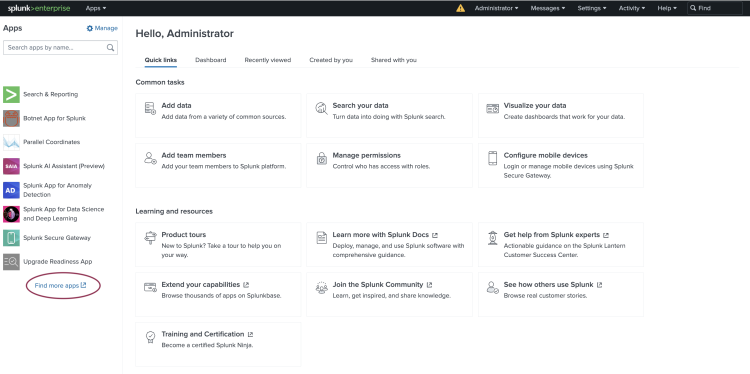 2. In the search field you can use keywords such as "machine learning" to find the AI Toolkit.
3. Choose Install.
4. Input your username and password, review the terms and conditions, then Agree and Install.
5. Restart your Splunk instance.
6. Following the restart, you can see the AI Toolkit app listed on your home page and available for use.
2. In the search field you can use keywords such as "machine learning" to find the AI Toolkit.
3. Choose Install.
4. Input your username and password, review the terms and conditions, then Agree and Install.
5. Restart your Splunk instance.
6. Following the restart, you can see the AI Toolkit app listed on your home page and available for use.
Install from the command line Permalink to this section
On the command line interface (CLI), run the command that corresponds to your operating system:
| Operating system | Command line |
|---|---|
| Unix/Linux | CODECopybash<br>./splunk install app <path/packagename><br> |
| Windows | CODECopylua<br>splunk install app <path\packagename><br> |
Alternatively, unpack/unzip the file then copy the app directory to $SPLUNK_HOME/etc/apps on Unix based systems or %SPLUNK_HOME%\etc\apps on Windows systems.
Where to install Permalink to this section
See the following table for where to install the AI Toolkit and PSC add-on:
Note: In a distributed deployment and depending on your environment, you might need to install the AI Toolkit and PSC in multiple places.
| Splunk component | Supported Y/N | AI Toolkit required | PSC required | Description |
|---|---|---|---|---|
| Search Heads | Yes | Yes | Yes | Install the AI Toolkit and PSC to all search heads where the AI Toolkit is used. |
| Indexers | No | No | No | Do not install on Indexers. |
| Heavy Forwarders | No | No | No | Do not install on Heavy Forwarders |
| Universal Forwarders | No | No | No | Do not install on Universal Forwarders |
| Light Forwarders | No | No | No | Do not install on Light Forwarders |
Distributed deployment feature compatibility Permalink to this section
See the following table for the compatibility of the AI Toolkit with Splunk distributed deployment features:
| Distributed deployment feature | Supported | Actions required |
|---|---|---|
| Search Head Clusters | Yes | Search heads must be running Splunk Enterprise version 6.6.x or higher. |
| Indexer Clusters | No | Do not install on Indexer Clusters. |
AI Toolkit files Permalink to this section
You can view the source code for the AI Toolkit app in Unix and Windows environments:
- For Unix-based systems, see
$SPLUNK_HOME/etc/apps/Splunk_ML_Toolkit. - For Windows systems, see
%SPLUNK_HOME%\etc\apps\Splunk_ML_Toolkit.
Note: The AI Toolkit is not open source and AI Toolkit source code is provided as an example only, and for educational purposes.
See the following table for sub-directory names and descriptions:
| Subdirectory | Description |
|---|---|
appserver/static and /bin |
Contains the underlying code files for Python, JavaScript, CSS, and images. |
/default |
Contains configuration and dashboard files. |
/lookups |
Contains the sample datasets used in the Showcase examples, along with more information about the datasets and their licenses. |
Bundle replication Permalink to this section
Permanent model files, sometimes referred to as learned models or encoded lookups, are saved on disk. These files follow Splunk knowledge object rules, including permissions and bundle replication. Bundle replication is the process by which knowledge objects on the search head are distributed to the indexers.
The AI Toolkit includes a number of example model files that support the Showcase. These examples are powered by .CSV lookup files. To prevent performance issues, these .CSV lookup files are not included in the AI Toolkit bundle replication processes.
Source: /en/splunk-cloud-platform/apply-machine-learning/use-ai-toolkit/5.7.3/install-and-upgrade-the-ai-toolkit/install-the-ai-toolkit (upstream Splunk AITK 5.7.3 docs)