Agent Builder
Configure MCP connection Preview
Complete the following steps:
Complete the following steps:
-
Open the AI Toolkit app.
-
From the Agentic AI tab select Configuration.
-
From the top right select +Connection and choose MCP server.
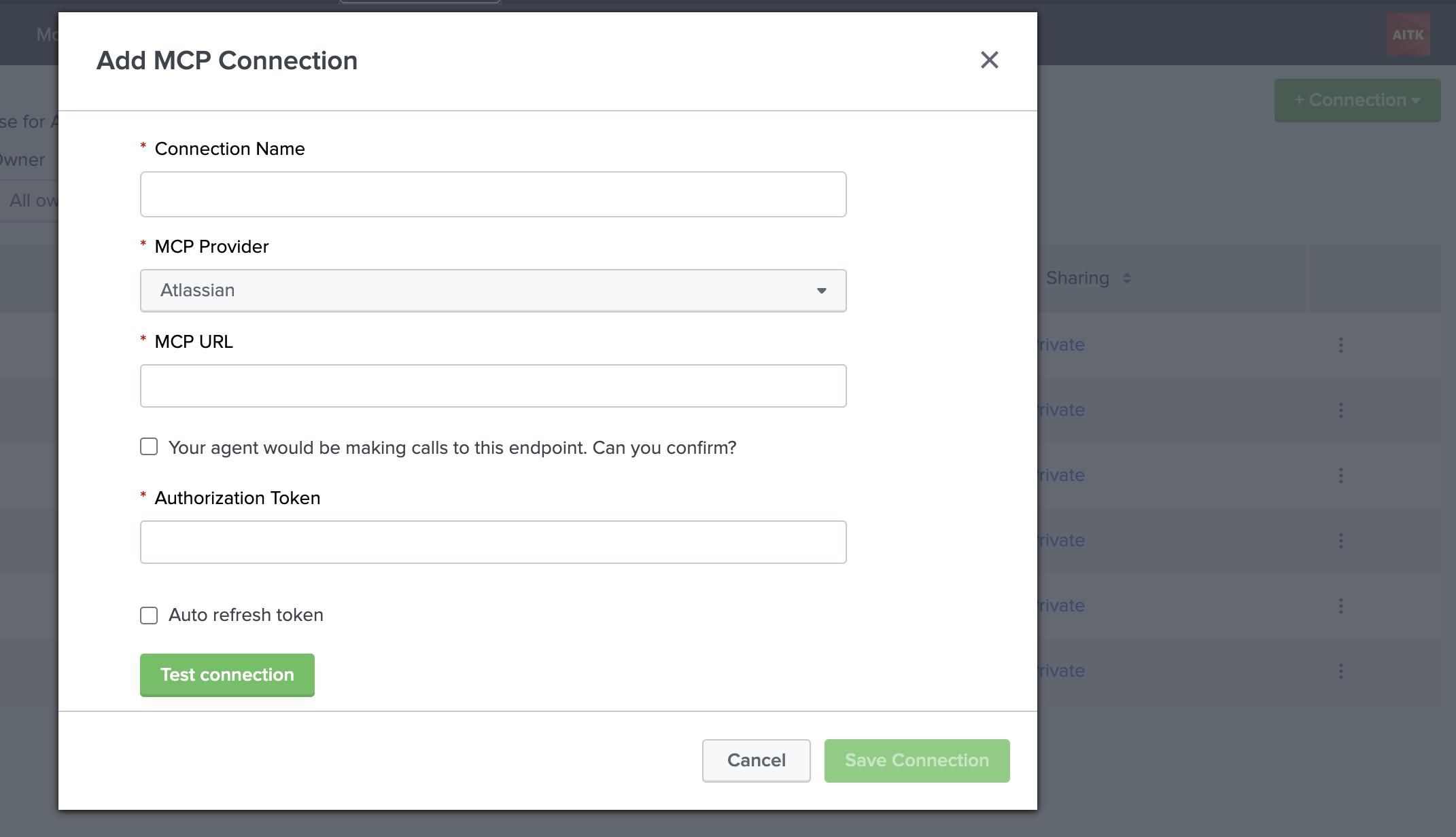
- Complete the fields on the Add MCP Connection page. Fields marked with an asterisk as required.
| Field | Description |
|---|---|
| Connection Name | Type in or paste in an alphanumeric Connection Name. |
| MCP Provider | Select an MCP Provider from the drop-down menu. Both Splunk and Atlassian are supported. |
| MCP URL | Enter the unique URL for the MCP server. |
| Calls to endpoint confirmation | Select to confirm calls will be made by the agent to this endpoint. |
| Authorization Token | Enter the unique key or credential. |
| Auto refresh token | Applicable to Altassian only. Select to confirm that the Authorization Token will automatically refresh. |
-
(Optional) Test the connection and edit field information as needed.
-
Select Save Connection when ready.
Source: https://help.splunk.com/en/splunk-cloud-platform/apply-machine-learning/use-ai-toolkit/5.7.3/ai-toolkit-commands-macros-and-visualizations/connections-tab-in-the-ai-toolkit (upstream Splunk AITK 5.7.3 docs)