LLM-RAG assistants
Set up LLM-RAG
Complete the following steps to set-up and begin using large language model retrieval-augmented generation (LLM-RAG).
Complete the following steps to set-up and begin using large language model retrieval-augmented generation (LLM-RAG).
Note: Only Docker deployments are supported for running LLM-RAG on the Splunk App for Data Science and Deep Learning (DSDL).
Prerequisites Permalink to this section
If you have not done so already, install or upgrade to DSDL version 5.2.1 and its dependencies. See Install or upgrade the Splunk App for Data Science and Deep Learning.
After installation, go to the setup page and configure Docker. See Configure the Splunk App for Data Science and Deep Learning.
Have Docker installed. See https://docs.docker.com/engine/install
Have Docker Compose installed. See https://docs.docker.com/compose/install
Note: Make sure that the Splunk search head can access the Docker host on port 5000 for API communication, and port 2375 for the Docker agent.
Set up container environment Permalink to this section
Follow these steps to configure a Docker host with the required container images.
- Run the following command to pull the LLM-RAG image to your Docker host:
docker pull splunk/mltk-container-ubi-llm-rag:5.2.1
- Get the Docker Compose files from the Github public repository as follows:
wget
https://raw.githubusercontent.com/splunk/splunk-mltk-container-docker/v5.2/beta_content/passive_deployment_prototypes/prototype_ollama_example/compose_files/milvus-docker-compose.yml
wget
https://raw.githubusercontent.com/splunk/splunk-mltk-container-docker/v5.2/beta_content/passive_deployment_prototypes/prototype_ollama_example/compose_files/ollama-docker-compose.yml
wget
https://raw.githubusercontent.com/splunk/splunk-mltk-container-docker/v5.2/beta_content/passive_deployment_prototypes/prototype_ollama_example/compose_files/ollama-docker-compose-gpu.yml
Run Docker Compose command Permalink to this section
Follow these steps to run the Docker Compose command:
-
Install Ollama Module.
For CPU machines, run this command:
docker compose -f ollama-docker-compose.yml up --detach
For GPU machines with the NVIDIA driver installed, run this command:
docker compose -f ollama-docker-compose-gpu.yml up --detach
- Install Milvus Module:
docker compose -f milvus-docker-compose.yml up --detach
- As a final check, make sure the Ollama image has been spun up and is under the Docker network named
dsenv-network:
docker ps
docker inspect <Container ID of Ollama>
- Pull LLM to your local machine by running the following command. Replace
MODEL_NAMEwith the specific model name listed in the Ollama library at https://ollama.com/library:
curl http://localhost:11434/api/pull -d '{ "name": "MODEL_NAME"}'
You can also pull models in at a later stage using the Splunk DSDL command or dashboard.
Configure DSDL for LLM-RAG Permalink to this section
Complete these steps to configure DSDL for LLM-RAG:
-
Navigate to Configuration , then Setup, and then select Setup.
-
Input
dsenv-networkin the Docker network box, as shown in the following image. This step ensures communication between your DSDL container and the other containers created by Docker compose.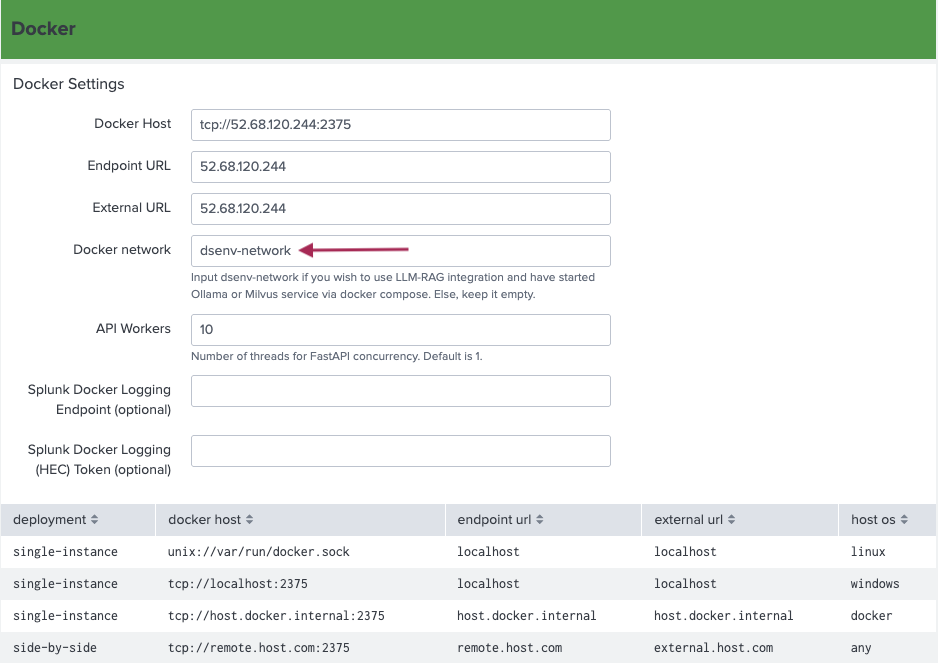
-
If you want to use the default Function Calling tools that search the Splunk platform, configure the Splunk Access Settings:
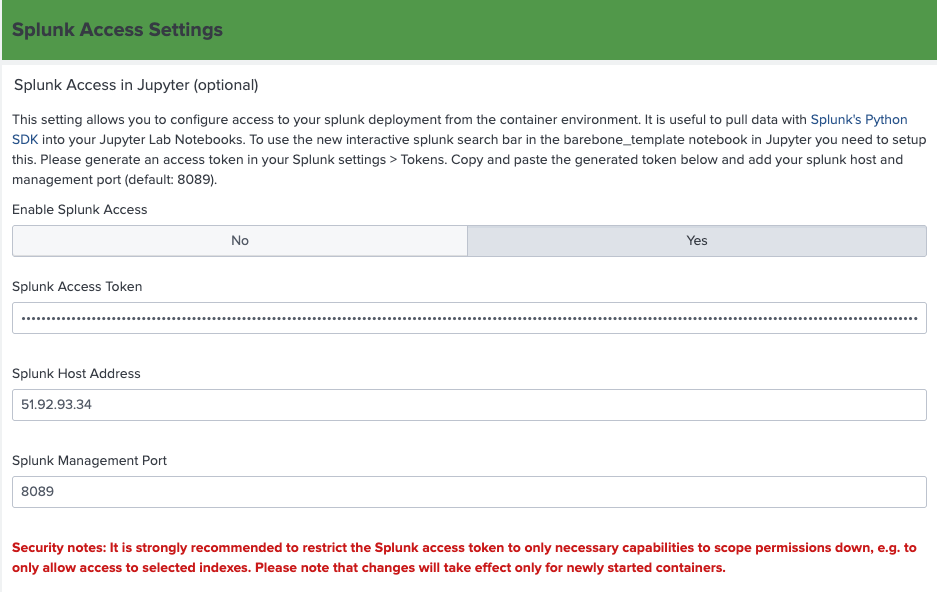
-
Navigate to Configuration and Setup and select Setup LLM-RAG (optional). Input the configurations for your LLM, Embedding, VectorDB, and GraphDB.
For more information on this additional setup page, see Set up additional LLM-RAG configurations.
-
Navigate to Configuration, then Containers and start the Red Hat LLM RAG CPU (5.2.1) container from the Development Container panel.
Source: /en/splunk-cloud-platform/apply-machine-learning/use-splunk-app-for-data-science-and-deep-learning/5.2.0/llm-rag-assistants/set-up-llm-rag (upstream Splunk DSDL 5.2.0 docs)