Deep Dives
Deep dive: Inference externally trained ONNX models with the AI Toolkit
In version 5.4.0 and higher of the AI Toolkit, you can upload and inference Open Neural Network Exchange (ONNX) models pre-trained in your preferred third-party tool to the AI Toolkit. To learn how to use pre-trained ONNX models in your…
In version 5.4.0 and higher of the AI Toolkit, you can upload and inference Open Neural Network Exchange (ONNX) models pre-trained in your preferred third-party tool to the AI Toolkit. To learn how to use pre-trained ONNX models in your own Splunk platform instance based on examples, follow these high-level steps:
- Complete the prerequisites.
- Then, choose from the following example deep dives using sample data:
Prerequisites Permalink to this section
Complete these steps to ensure your system is correctly set up for following the example deep dives:
- Install the required apps
- Confirm required permissions
- Prepare the sample data
- Set lookup table file visibility to global
- Open a Jupyter Notebook
Install the required apps Permalink to this section
Download and install the following apps which are required to use ONNX model inferencing:
- AI Toolkit, version 5.4.0 or higher
- Compatible version of the Python for Scientific Computing (PSC) add-on
- Botnet App for Splunk
- Parallel Coordinates - Custom Visualization
Note: If you want to follow the TensorFlow or scikit-learn example deep dives, you must install the TensorFlow or scikit-learn packages if they are not already installed in your environment.
Confirm required permissions Permalink to this section
Check that you have the correct capabilities assigned so that you can upload ONNX models. The permissions you need are as follows:
upload_lookup_filesupload_onnx_model_file
To learn more, see ONNX file upload permissions.
Prepare the sample data Permalink to this section
The data used by the Botnet App for Splunk is taken from the CTU-13 dataset, created by the Czech Technical University in Prague. This dataset is made up of simulated netflow logs containing normal network traffic, and network traffic that has been generated by different botnets.
Prepare the dataset to use in each example task using the following steps:
- Open the Botnet App for Splunk in your Splunk platform instance.
- From the main navigation bar select 2. Data Analysis & Preparation > 2.2 Undersampling > 2.3.2 Generate New Sample.
- Select the sampling ratio of 1:4.
- Select Generate New Sample and confirm that you want to create a new sample.
CAUTION: It might take up to 10 minutes to generate the new sample.
After the sample is created you can see the number of records generated.
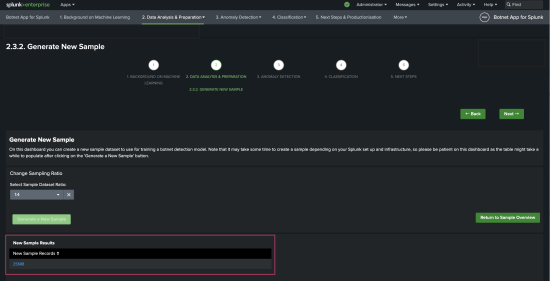
- Confirm that the example data is present using the following search:
| inputlookup netflow_botnet_balanced.csv
Set lookup table file visibility to global Permalink to this section
To ensure you can search the lookup from the AI Toolkit in the examples, set the lookup visibility to global. The lookup is then globally visible across all apps and can be searched from the AI Toolkit.
- From the main navigation bar select Settings > Lookups. Select Lookup table files.
- Use the filter field to narrow down the list of lookup table files to find
/Applications/Splunk/etc/apps/botnet-app-for-splunk/lookups/netflow_botnet_balanced.csv. - In the table row for
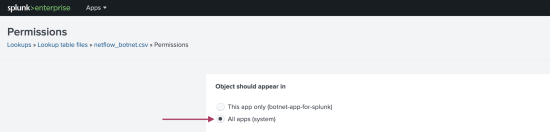
/Applications/Splunk/etc/apps/botnet-app-for-splunk/lookups/netflow_botnet_balanced.csvchoose Permissions. - In the Permissions dialog box under Object should appear in, ensure All apps (system) is selected. If so, the lookup is shared globally. The following image shows the proper selection:
Open a Jupyter Notebook Permalink to this section
The final step before you can begin working with these ONNX examples is to open up a Jupyter Notebook. Use this notebook to run the code in the examples.
Note: You must install and set this notebook up in your own environment. Notebooks are not provided with the AI Toolkit app.
Inference an ONNX model using TensorFlow Permalink to this section
This example includes the following steps:
- Train the ONNX model.
- Upload the ONNX model in MLTK.
Train the ONNX model Permalink to this section
This example trains a model using TensorFlow. Complete the following steps:
- Prepare your data by reading the lookup CSV that was generated in the Botnet App into a Python dataframe. This data is used in all of the examples, so run all of this code in the same notebook:
Note: Change the path to the file to match your own environment.
import pandas as pd
import numpy as np

df = pd.read_csv('/path/to/splunk/etc/apps/botnet-app-for-splunk/lookups/netflow_botnet_balanced.CSV')

print("Raw data contains ", len(df.index), " records")

# Replace 1 or 0 with yes or no in botnet column
df['botnet_string'] = np.where(df['botnet'] > 0, 'Yes', 'No')
- Next, set up your data for processing with a neural network:
from sklearn.model_selection import train_test_split

# Removing fields that will not be used for the prediction, such as the future KPI and health score values and the health score levels
X = df[['avgBytes','avgDuration','numFlows','sumBytes','uniqueDstIp','uniqueDstPort','uniqueProtocols']]
y = df['botnet_string']

# Creating the training and test data sets
X_train, X_test, y_train, y_test = train_test_split(X, y, test_size=0.30, random_state=42)

from sklearn.preprocessing import LabelEncoder
le = LabelEncoder()
le.fit(y_train)
y_train_enc = le.transform(y_train)
y_test_enc = le.transform(y_test)

print("Training data contains ", len(X_train.index), " records")
print("Test data contains ", len(X_test.index), " records")
- Use TensorFlow to train a dense neural network classifier on the data:
from tensorflow.keras import Sequential
from tensorflow.keras.layers import Dense

# determine the number of input features
n_features = X_train.shape[1]
# define model
model = Sequential()
model.add(Dense(7, activation='relu', kernel_initializer='he_normal', input_shape=(n_features,)))
model.add(Dense(1, activation='sigmoid'))
# compile the model
model.compile(optimizer='adam', loss='binary_crossentropy', metrics=['accuracy'])
# fit the model
model.fit(X_train, y_train_enc, epochs=150, batch_size=32, verbose=0)

# evaluate the model
loss, acc = model.evaluate(X_test, y_test_enc, verbose=0)
print('Test Accuracy: %.3f' % acc)
- Save this model as an ONNX file with the following commands:
import tf2onnx
import onnx

onnx_model, _ = tf2onnx.convert.from_keras(model,opset=13)
onnx.save(onnx_model,'nn_botnet.onnx')
Upload the ONNX model in the AI Toolkit Permalink to this section
Complete the following steps to upload the ONNX model:
- In the AI Toolkit, select Models from the main navigation bar.
- Select Upload ONNX model.
- Fill in the required fields:
| Field name | Input value |
|---|---|
| Model name | nn_botnet.onnx |
| Feature variables | avgBytes, avgDuration, numFlows, sumBytes, uniqueDstIp, uniqueDstPort, uniqueProtocols |
| Target variable | botnet |
| Model file | Paste in or browse to the nn_botnet.onnx model saved using the code in the previous section. |
- After the validation check completes, check that you see a success message for the uploaded file. If the validation check fails, follow these troubleshooting steps:
- Modify the maximum model size. You can modify the max value on the Settings tab and selecting Edit Default Settings.
- Check that you have the required permissions. See the Confirm required permissions section to address this.
- You can use the now uploaded model by running the following search from the search bar:
| inputlookup netflow_botnet_balanced.csv | apply onnx:nn_botnet
Note: The apply command uses the onnx: prefix to specify that an ONNX model file is being used for inference.
Inference an ONNX model using scikit-learn pipeline Permalink to this section
This example includes the following steps:
- Train the ONNX model.
- Upload the ONNX model in MLTK.
Train the ONNX model Permalink to this section
This example trains a a scikit-learn pipeline for outlier detection. In this example the Isolation Forest algorithm identifies outliers with a -1 and expected records with a 1.
Complete the following steps:
X = df[['avgBytes','avgDuration','numFlows','sumBytes','uniqueDstIp','uniqueDstPort','uniqueProtocols']]

from sklearn.preprocessing import StandardScaler
from sklearn.decomposition import PCA
from sklearn.ensemble import IsolationForest
from sklearn.pipeline import Pipeline
pipe = Pipeline([('scaler', StandardScaler()),
                 ('pca',PCA(n_components=3)),
                 ('isof',IsolationForest(random_state=0))]).fit(X)

from onnx.defs import onnx_opset_version
from skl2onnx import to_onnx
from skl2onnx.common.data_types import FloatTensorType

initial_type = [('float_input', FloatTensorType([None, 7]))]

onx = to_onnx(pipe, initial_types=initial_type,
              target_opset=15)

with open("pipeline_botnet.onnx", "wb") as f:
    f.write(onx.SerializeToString())
Upload the ONNX model in the AI Toolkit Permalink to this section
Complete the following steps to upload the ONNX model:
- In the AI Toolkit, select Models from the main navigation bar.
- Select Upload ONNX model.
- Fill in the required fields:
| Field name | Input value |
|---|---|
| Model name | pipeline_botnet.onnx |
| Feature variables | avgBytes, avgDuration, numFlows, sumBytes, uniqueDstIp, uniqueDstPort, uniqueProtocols |
| Target variable | botnet |
| Model file | Paste in or browse to the pipeline_botnet.onnx model saved using the code in the previous section. |
- After the validation check completes, check that you see a success message for the uploaded file. If the validation check fails, follow these troubleshooting steps:
- Modify the maximum model size. You can modify the max value on the Settings tab and selecting Edit Default Settings.
- Check that you have the required permissions. See the Confirm required permissions section to address this.
- You can use the now uploaded model by running the following search from the search bar:
| inputlookup netflow_botnet_balanced.csv | apply onnx:pipeline_botnet
Inference an ONNX model using hyperparameter optimization Permalink to this section
This example includes the following steps:
- Train the ONNX model.
- Upload the ONNX model in the AI Toolkit.
Train the ONNX model Permalink to this section
The following example demonstrates how RandomizedSearchCV from scikit-learn can identify the best parameters for a Random Forest classifier. You can use these parameters to predict whether the netflow logs are generated by a botnet.
Perform the following steps:
- Run the following code:
from sklearn.model_selection import RandomizedSearchCV
# Number of trees in random forest
n_estimators = [int(x) for x in np.linspace(start = 200, stop = 2000, num = 10)]
# Number of features to consider at every split
max_features = ['auto', 'sqrt']
# Maximum number of levels in tree
max_depth = [int(x) for x in np.linspace(10, 110, num = 11)]
max_depth.append(None)
# Minimum number of samples required to split a node
min_samples_split = [2, 5, 10]
# Minimum number of samples required at each leaf node
min_samples_leaf = [1, 2, 4]
# Method of selecting samples for training each tree
bootstrap = [True, False]
# Create the random grid
random_grid = {'n_estimators': n_estimators,
                  'max_features': max_features,
                  'max_depth': max_depth,
                  'min_samples_split': min_samples_split,
                  'min_samples_leaf': min_samples_leaf,
                  'bootstrap': bootstrap}
print(random_grid)
{'bootstrap': [True, False],
    'max_depth': [10, 20, 30, 40, 50, 60, 70, 80, 90, 100, None],
    'max_features': ['auto', 'sqrt'],
    'min_samples_leaf': [1, 2, 4],
    'min_samples_split': [2, 5, 10],
    'n_estimators': [200, 400, 600, 800, 1000, 1200, 1400, 1600, 1800, 2000]}

from sklearn.ensemble import RandomForestClassifier

# Use the random grid to search for best hyperparameters
# First create the base model to tune
rf = RandomForestClassifier()
# Random search of parameters, using 3 fold cross validation,
# search across 100 different combinations, and use all available cores
rf_random = RandomizedSearchCV(estimator = rf, param_distributions = random_grid, n_iter = 100, cv = 3, verbose=2, random_state=42, n_jobs = -1)
# Fit the random search model
rf_random.fit(X_train, y_train)

rf_random.best_params_

from sklearn.metrics import classification_report
best_random = rf_random.best_estimator_
print(classification_report(y_test, best_random.predict(X_test), target_names=['No','Yes']))
- Following the use of RandomizedSearchCV, use GridSearchCV to further narrow down the set of parameters and get the best results for the botnet prediction model:
from sklearn.model_selection import GridSearchCV
# Create the parameter grid based on the results of random search
param_grid = {
       'bootstrap': [True],
       'max_depth': [10, 20, 30],
       'min_samples_leaf': [1, 2, 3],
       'min_samples_split': [1, 2, 3],
       'n_estimators': [900, 1000, 1100]
}
# Create a based model
rf = RandomForestClassifier()
# Instantiate the grid search model
grid_search = GridSearchCV(estimator = rf, param_grid = param_grid,
                             cv = 3, n_jobs = -1, verbose = 2)

# Fit the grid search to the data
grid_search.fit(X_train, y_train)

grid_search.best_params_

best_grid=grid_search.best_estimator_
print(classification_report(y_test, best_grid.predict(X_test), target_names=['No','Yes']))
- Save the model with the best parameters in an ONNX format so you can upload the model to the Splunk platform:
from onnx.defs import onnx_opset_version
from skl2onnx import to_onnx
from skl2onnx.common.data_types import FloatTensorType

initial_type = [('float_input', FloatTensorType([None, 7]))]

onx = to_onnx(best_grid, initial_types=initial_type,
                 target_opset=15)

with open("rfc_botnet_grid.onnx", "wb") as f:
       f.write(onx.SerializeToString())
Upload the ONNX model in the AI Toolkit Permalink to this section
Complete the following steps to upload the ONNX model:
- In the AI Toolkit select Models from the main navigation bar.
- Select Upload ONNX model.
- Fill in the required fields:
| Field name | Input value |
|---|---|
| Model name | rfc_botnet_grid.onnx |
| Feature variables | avgBytes, avgDuration, numFlows, sumBytes, uniqueDstIp, uniqueDstPort, uniqueProtocols |
| Target variable | botnet |
| Model file | Paste in or browse to the rfc_botnet_grid.onnx model saved using the code in the previous section. |
- After the validation check completes, check that you see a success message for the uploaded file. If the validation check fails, follow these troubleshooting steps:
- Modify the maximum model size. You can modify the max value on the Settings tab and selecting Edit Default Settings.
- Check that you have the required permissions. See the Confirm required permissions section to address this.
- You can use the now uploaded model by running the following search from the search bar:
| inputlookup netflow_botnet_balanced.csv | apply onnx:rfc_botnet_grid
Note: Predictions made with this model identify botnets with a yes or a no, rather than a 1 or a 0 as shown in the source data. This is due to the label encoding that occurred when the lookup CSV data that was generated in the Botnet App was read into a Python data frame in an earlier step.
Source: /en/splunk-cloud-platform/apply-machine-learning/use-ai-toolkit/5.7.3/ai-toolkit-deep-dives-library/deep-dive-inference-externally-trained-onnx-models-with-the-ai-toolkit (upstream Splunk AITK 5.7.3 docs)